
Support
How to install Easy Screenshot Plus, capture a page, edit it, and save or copy the result — plus the Firefox settings you may need along the way.
Install
Easy Screenshot Plus is a Firefox extension. It requires Firefox 137 or later on Windows, macOS, or Linux. It isn't available for Firefox on Android or for other browsers.
- Open the Easy Screenshot Plus listing on Firefox Add-ons and click Add to Firefox.
- Approve the permissions Firefox shows. The privacy policy explains what each one is used for.
- The extension's icon appears in the Firefox toolbar. If you don't see it, click the Extensions button (the puzzle piece) and pin Easy Screenshot Plus to the toolbar.
To load a development build from source instead, follow the contributing guide.
Start a capture
Click the toolbar icon to open the capture menu and choose one of three modes:
- Capture Whole Web Page captures the full page from top to bottom. Pages taller or wider than a single Firefox capture are captured in tiles and stitched together automatically.
- Capture Visible Region captures what's currently on screen.
- Capture Selected Region lets you drag a rectangle over the page. Move it, or resize it from its edges and corners, then double-click or press Enter to capture. Press Esc to cancel.
The capture opens in a new tab in the editor, and a shutter sound plays. You can turn sounds off in the settings.
Keyboard shortcuts
| Action | Default shortcut |
|---|---|
| Show the capture menu | Alt + Shift + S |
| Capture the whole web page | Ctrl + Shift + S (⌘ + Shift + S on macOS) |
| Capture the visible region | none |
| Capture a selected region | none |
Firefox lets you change these shortcuts or assign the missing ones: open the extension's settings and click Manage Keyboard Shortcuts, or go to about:addons, click the gear icon, and choose Manage Extension Shortcuts.
Toolbar click and modifier-click
By default, clicking the toolbar icon shows the capture menu. In the settings you can make a plain click run one capture mode directly, and choose a different mode for ⌘-click on macOS or Ctrl-click on Windows and Linux. The modifier-click captures the visible region unless you change it.
Edit the screenshot
The editor opens in its own tab. The tools run along the top, and each has a single-key shortcut.
| Tool | Key | What it does |
|---|---|---|
| Select | V | Select an annotation to move, resize, restyle, or delete it |
| Crop | X | Drag to choose the area to keep, then double-click to crop |
| Rectangle | R | Draw a rectangle outline |
| Ellipse | E | Draw an ellipse outline |
| Line | D | Draw a line, with an arrowhead on one end (default), both ends, or neither |
| Pencil | F | Draw freehand |
| Text | T | Click to place text, type, then click elsewhere or press Ctrl + Enter |
| Blur | B | Drag over anything you want to hide |
| Undo | Z | Step back through your changes |
| Save | S | Save a PNG to your downloads folder |
| Copy | C | Copy the PNG to your clipboard |
| Close | Q | Discard the capture and close the tab |
An options bar appears for the current tool: a color palette for every drawing tool, three line widths for rectangles, ellipses, lines, and the pencil, an arrowhead setting for lines, and a font size for text. Your last-used choices are remembered for the next capture.
Annotations stay editable until you save or copy. Switch to Select (V) and click an annotation to move it, drag its handles to resize it or reposition a line's endpoints, pick a new color or width, or press Delete to remove it. Double-click a text annotation to edit its wording. Esc cancels the shape you're drawing and returns to the Select tool.
Save or copy the result
- Save (S) writes a PNG to the folder Firefox uses for downloads (set under Firefox Settings → General → Downloads). Files are named like
Screenshot 2026-06-11 at 5.31.24 PM.png, and an existing file is never overwritten. A notification confirms the save and the editor tab closes. If you've enabled it in the settings, your file manager opens to the folder. - Copy (C) puts the PNG on your clipboard so you can paste it into a chat, document, or email. The editor tab closes after copying.
- Close (Q) discards the capture.
Settings
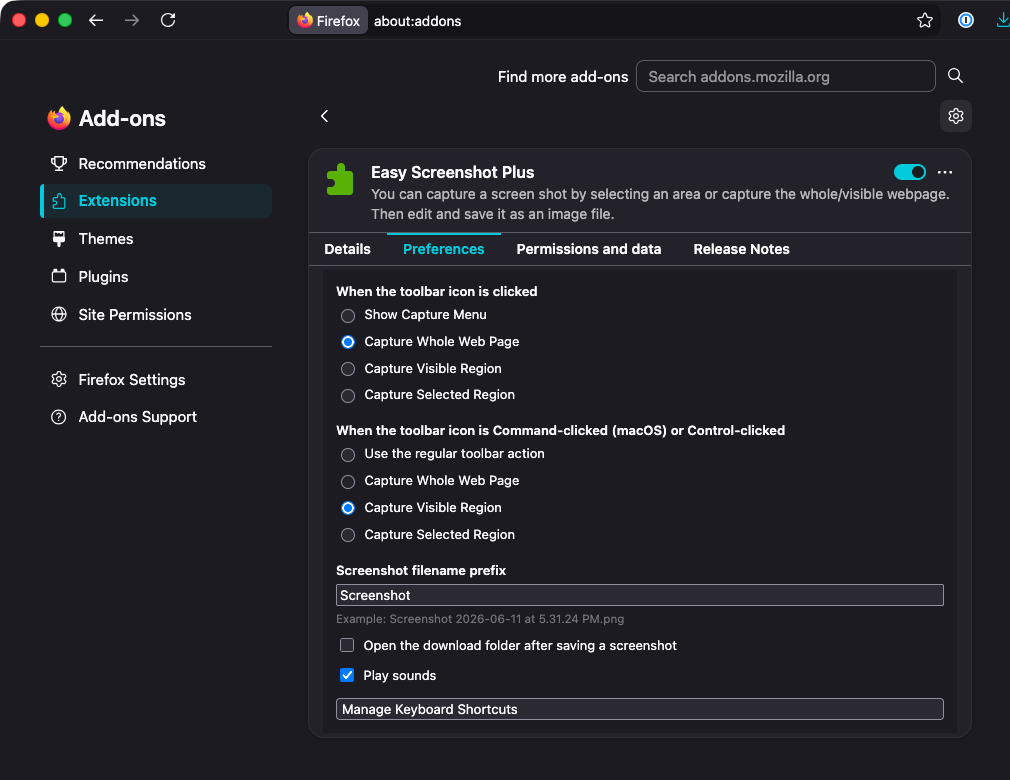
Open the settings by right-clicking the toolbar icon and choosing Settings, or from about:addons → Extensions → Easy Screenshot Plus → Preferences.
- When the toolbar icon is clicked — show the capture menu (the default) or run one capture mode directly.
- When the toolbar icon is Command-clicked (macOS) or Control-clicked — use the regular toolbar action or run a different mode. Defaults to capturing the visible region.
- Screenshot filename prefix — replaces the word "Screenshot" at the start of saved filenames.
- Open the download folder after saving a screenshot — off by default.
- Play sounds — the capture and save sounds. On by default.
- Manage Keyboard Shortcuts — opens Firefox's shortcut manager for this extension.
Changes apply immediately. Settings are stored locally in Firefox and never leave your computer.
Capturing local files
Starting with Firefox 153, an extension can't see pages you open from your own computer — file:/// addresses such as a saved HTML page or a locally generated report — until you switch that on for the extension. Until you do, Easy Screenshot Plus can't capture those pages: the options in the capture menu are greyed out, and a toolbar click or keyboard shortcut does nothing.
Why it's off by default
An extension that's allowed to access your data for all websites used to get access to local files along with it. Firefox now treats local files as a separate, optional permission, so no extension can read files from your disk unless you explicitly allow it. Easy Screenshot Plus needs the permission for one reason: to run its selection overlay and page-measuring script on a local page so it can capture it the same way it captures any website. It doesn't read any other files.
How to enable it
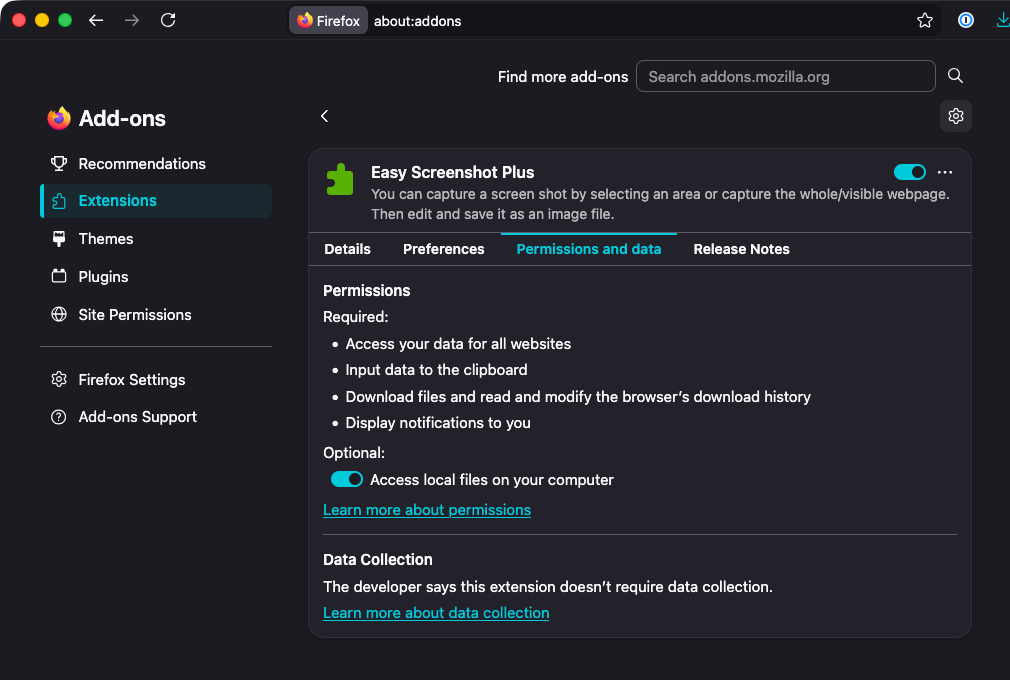
- Open the Add-ons Manager: choose Add-ons and themes from the Firefox menu, press Ctrl + Shift + A (⌘ + Shift + A on macOS), or go to
about:addons. - Click Extensions, then Easy Screenshot Plus.
- Open the Permissions and data tab.
- Under Optional, turn on Access local files on your computer.
Afterward
Go back to the tab with the local file, reload it, and capture as usual. You only need to do this once: the permission stays on until you turn it off in the same place, and it applies to every local file you open. If you don't see the switch, you're on a Firefox version earlier than 153, where local pages already work without it.
Pages that can't be captured
Firefox doesn't let extensions run on some of its own pages, including about: pages such as about:addons and about:preferences, Reader View, the built-in PDF viewer, and addons.mozilla.org. On those pages the capture menu options are greyed out and direct captures do nothing.
Whole-page captures top out at about 32,000 pixels per side on a standard display (about 16,000 on a 2× high-resolution display). Longer pages are cut off at that point.
Report a problem
- Open an issue on GitHub. Include your Firefox version, the extension version (shown in
about:addons), and the page you were capturing if you can share it. - Or email hello@quietmindcreative.com.
Easy Screenshot Plus is a community-maintained fork of Mozilla's original Easy Screenshot extension. It's developed independently and isn't affiliated with Mozilla or Firefox.